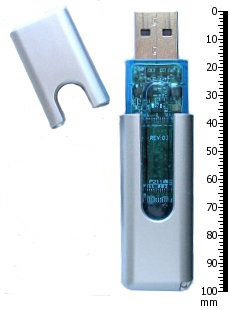
Every day we take photos, download files, write messages, and assume without a second thought that all of this is stored “somewhere.” But where exactly is that “somewhere”? What is the difference between a video on your phone and a backup sitting on a cloud server? In this article I explain, from start to finish, where and how your digital life is really stored, and what actually goes on inside a tiny USB flash drive.
- What does data storage actually mean?
- Bits, bytes, and the language of data
- From punch cards to disks: a short history
- The hard disk: a world of spinning platters
- Flash memory: remembering with no moving parts
- Why is an SSD so fast?
- RAID: many disks working together
- USB, microSD, external drive: different bodies of the same idea
- The cloud: your files on someone else’s computer
- Capacity, formatting, and “missing” gigabytes
- Practical ways to keep your data safe
- Where is the future of storage heading?
What does data storage actually mean?
When a computer runs, it works with two kinds of memory. One is a temporary workspace (RAM): it is fast, but everything inside it vanishes the moment the power is cut. The other is permanent storage; this is the part that keeps your files in place when you turn the device off and on again. When we talk about data storage, we mean this second one: the medium that preserves information even when the electricity is gone.
You know this distinction from everyday experience: if your computer suddenly shuts down while you are working on a document, the changes you did not save are lost, but what you saved earlier stays put. That “lost” part was in RAM, the temporary memory; the part that “remained” was written to the disk, that is, to permanent storage. When evaluating a device, you should read these two numbers separately: the working memory (RAM) determines how many tasks the device can comfortably juggle at once, while storage determines how many files you can keep.
What is interesting is this: a computer does not actually “see” a photo, text, or music. It stores everything using only two states, that is, the on/off, 1/0 pair. The whole talent of a storage medium is its ability to hold these 1s and 0s billions of times, reliably, and to read them back when needed.
Bits, bytes, and the language of data
The smallest unit is the bit: a single 1 or 0. Eight bits together make a byte, and a byte is enough to represent, say, a single letter. From there we move upward: roughly a thousand bytes make a kilobyte, around a million make a megabyte, around a billion make a gigabyte, and a thousand gigabytes make a terabyte.
To make this scale concrete: a plain page of text takes up a few kilobytes, a good phone photo a few megabytes, and a film a few gigabytes. What we call the “capacity” of a storage device is how many bytes it can fit. Every other technical detail is about how we store these bytes in greater number, more quickly, and more safely.
A point that is often confused here is the unit of speed. We measure capacity in bytes, but we usually see data transfer speed as bits per second; that is why your internet speed is written in “megabits” while your file size is in “megabytes.” Since eight bits make a byte, the large speed figures on paper translate in practice into more modest file transfer times. Knowing this helps you set realistic expectations when buying a disk or a connection.
From punch cards to disks: a short history
The idea of machines storing data is even older than computers. In the nineteenth century, weaving looms and tabulating machines were “programmed” with cards that had holes punched in them; the presence or absence of a hole was a kind of 1 and 0. In the mid-twentieth century came magnetic tape; these strips, cousins of the tapes that recorded sound, formed the first memory of large computers.
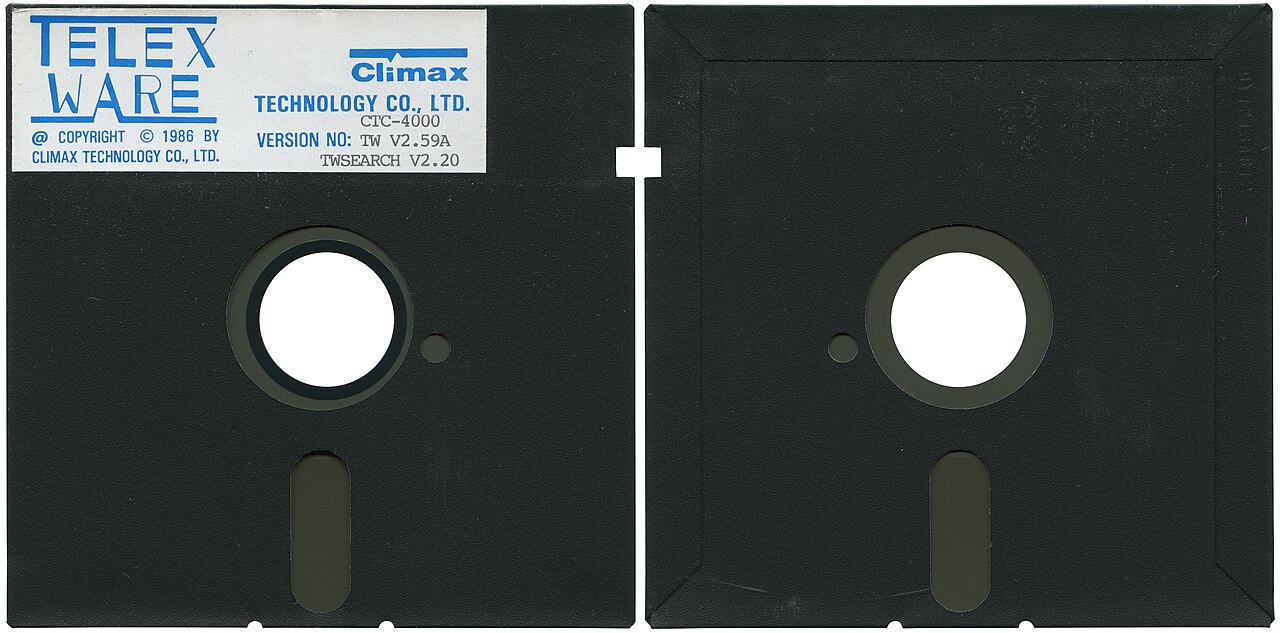
Then came floppy disks. A floppy was a magnetic circle inside a plastic case, and it was the most common way to carry a file from one computer to another. They had capacities that make us smile through today’s eyes; an entire floppy would look tiny next to a single modern photo. Still, we owe it to this era that the “save” icon is, even now, a drawing of a floppy disk.
The big leap after the floppy was the hard disk. The first hard disks were the size of a washing machine and held less data than a single photo you take today in a second. Over the decades, the same technology shrank to fit in the palm of your hand while its capacity grew millions of times. The tiny drives that are the real subject of this article are the latest links in that long journey.
The hard disk: a world of spinning platters
A traditional hard disk (HDD) is, in fact, like a very precise record player. Inside it are shiny platters coated with a magnetic material, and they spin thousands of times per minute. A tiny read-write head gliding over the platter writes the 1s and 0s by changing the magnetic field point by point; the same head “reads” the data back by sensing the magnetic direction of those points.
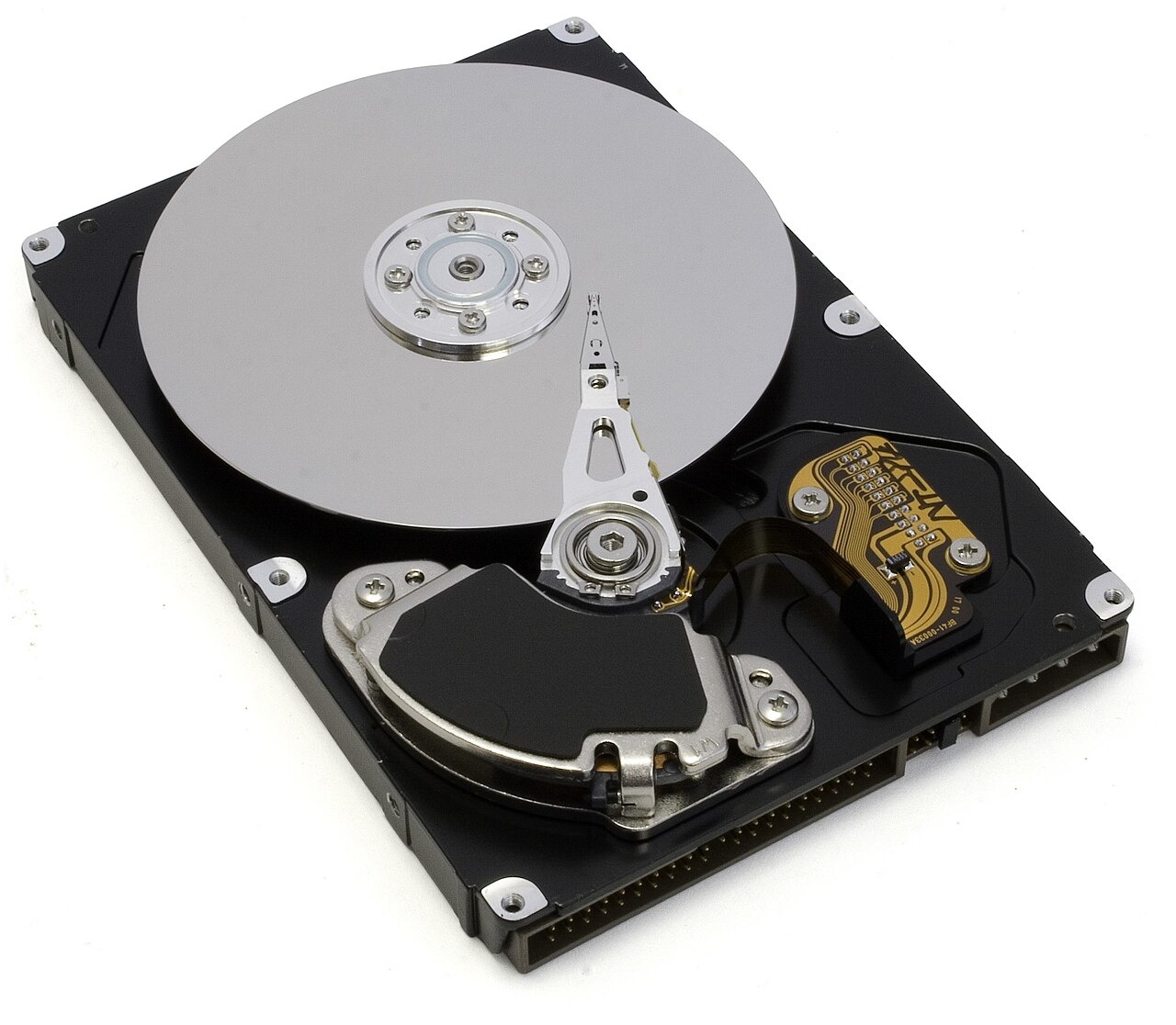
It is surprising to learn that the head never touches the platter: between them is a cushion of air thousands of times thinner than a human hair. This is exactly why hard disks are sensitive to drops and shocks; if you knock it hard while it is running, the head can strike the platter and cause permanent damage.
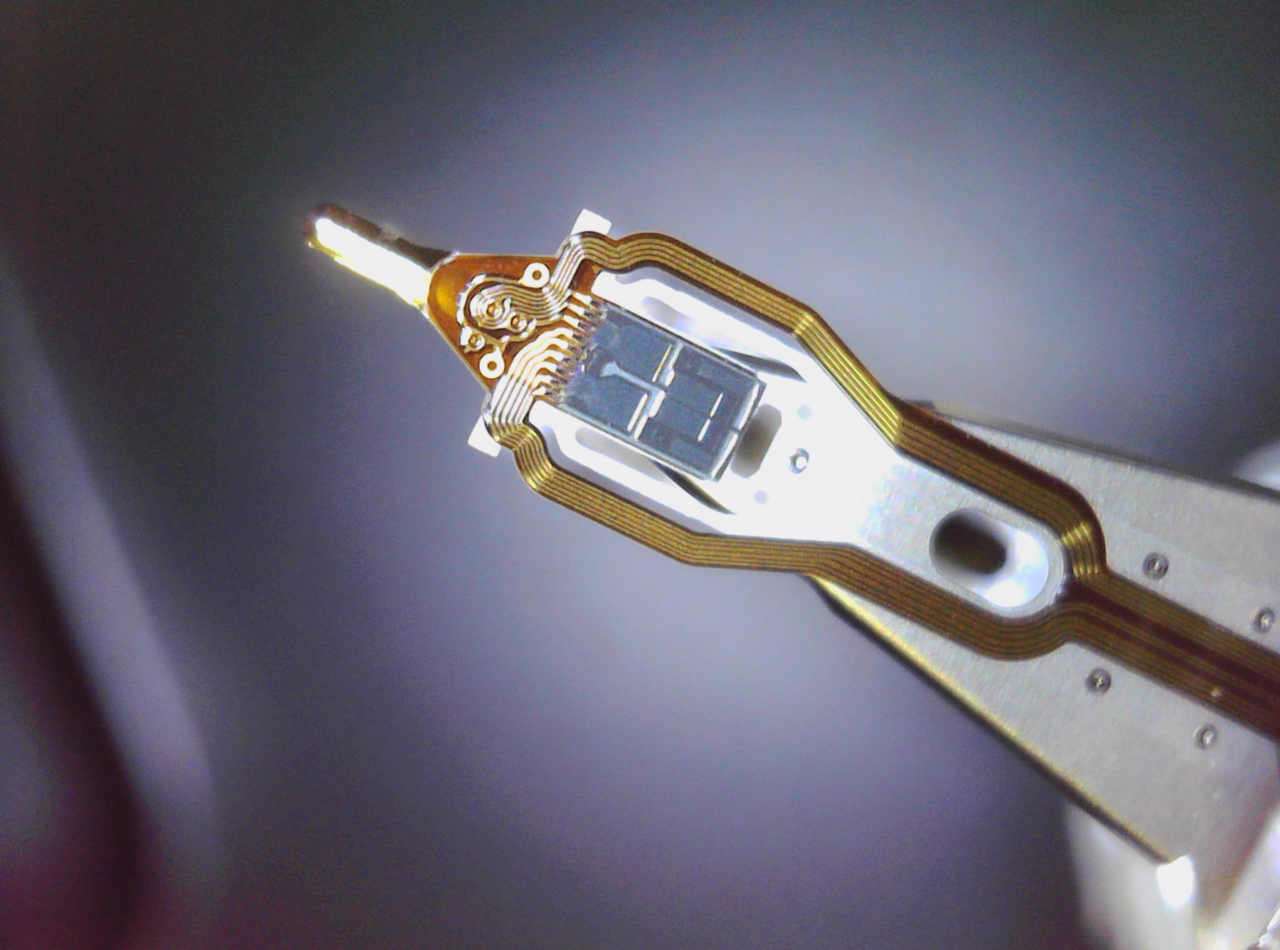
The biggest advantage of the hard disk is cost: it is still one of the cheapest options per gigabyte, which is why it is widely used for large archives and backups. Its disadvantage is that it relies on moving parts; this makes it slower, noisier, and more prone to mechanical failure.
Flash memory: remembering with no moving parts
The technology that powers your USB drive, your phone, and modern computers is entirely different: flash memory. Here there is no spinning platter, no gliding head, no moving parts at all. Instead, there are billions of cells, each behaving like a tiny trap. Electrons are confined inside these cells; the presence of electrons represents one state and their absence another, and this charge stays in place even when the power is cut.
The real genius of modern flash chips is that they stack the cells not in a flat row but layer upon layer. It is like building a skyscraper instead of a single-story house: many more cells, and therefore much more capacity, fit into the same footprint. Today, more information than once filled an entire room can fit on a chip the size of your fingertip.
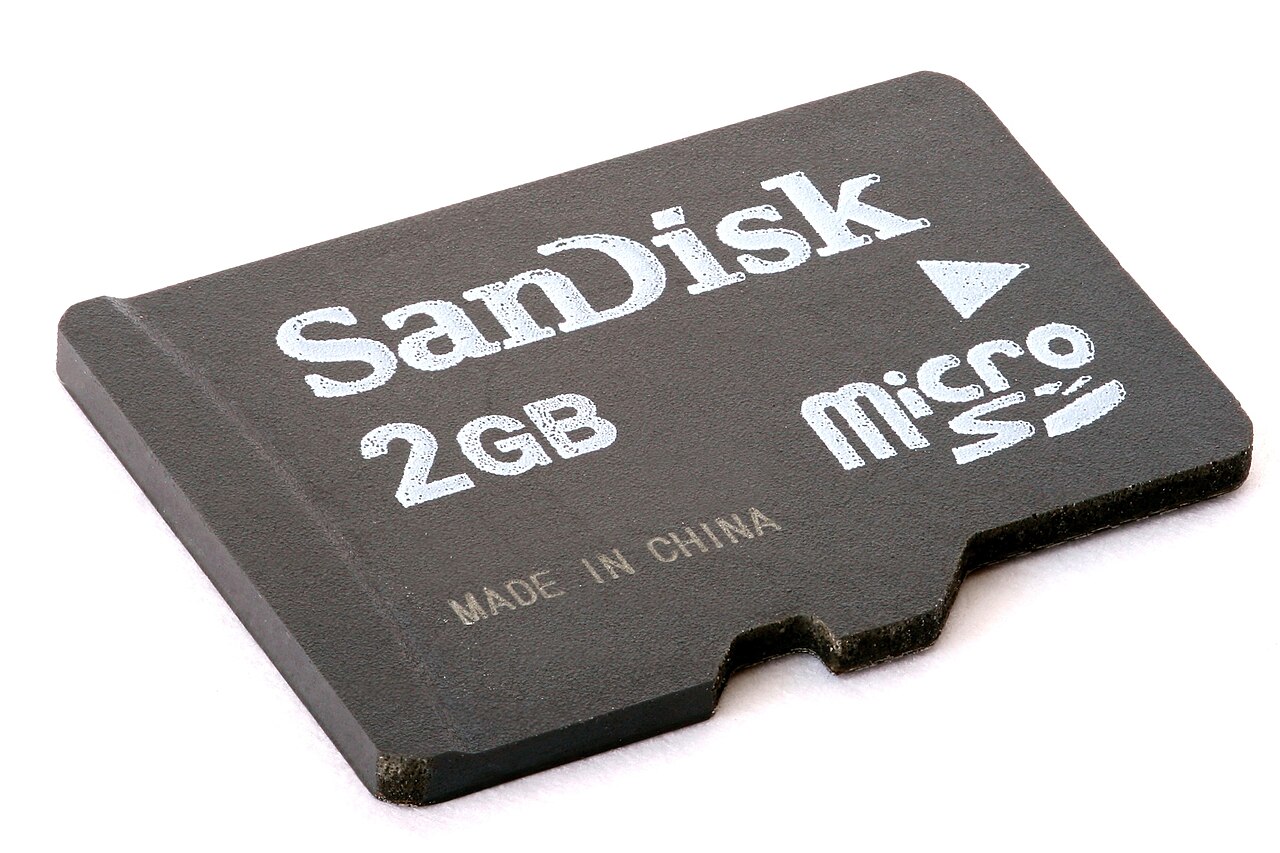
One feature of flash memory is that the cells have a limited number of write-erase cycles. Smart controllers distribute this load evenly across all cells (wear leveling) to extend the device’s life. That is why you can use a USB drive thousands of times, but not forever.
The cells themselves also come in different types. Some store a single bit per cell; these are faster and more durable but expensive. Some fit two, three, or even four bits into the same cell; this lowers cost and raises capacity but gives up a little speed and lifespan. Much of the difference in quality between a cheap USB drive and a professional SSD comes from this choice of cell type. They may look identical from the outside, but inside, entirely different trade-offs have been made.
Why is an SSD so fast?
An SSD (solid-state drive) combines the same flash technology at large scale with a smart brain. Inside an SSD that plugs into a computer are many flash chips and a controller that manages them. Because there are no moving parts, access to data happens almost instantly; whereas in a hard disk you have to wait for the head to reach the right place, in an SSD there is no such delay.
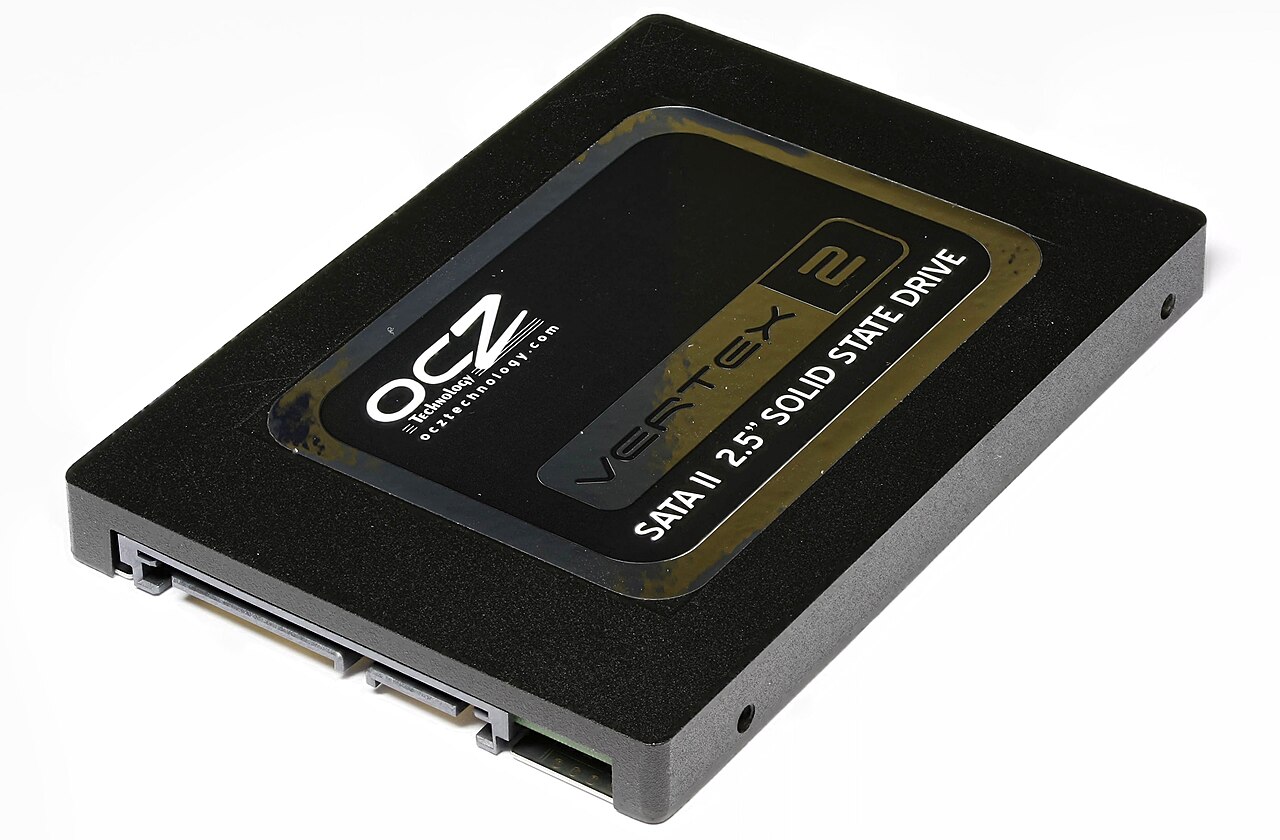
In practice you feel this difference most when the computer starts up. While an old machine with a hard disk can take minutes to boot, a device with an SSD is ready in seconds. Opening programs, copying large files, loading games; all of them speed up noticeably. The SSD’s only real disadvantage is that it is more expensive than a hard disk for the same capacity, but that gap shrinks every year.
RAID: many disks working together
A single disk can be both slow and fragile at a certain point. That is why, in servers and serious backup systems, we often encounter an approach called RAID. The idea is simple: making several disks work as a single logical unit. You can do this with different layouts; in some layouts the data is split into pieces and written to several disks at once, which increases speed. In others, everything is written to two disks at the same time, so if one fails the other steps in.
The most commonly used setups combine these two ideas: they both increase speed and protect against the death of a single disk. Thanks to RAID, when one disk fails it can be replaced and the data rebuilt without stopping the system. Still, it must not be forgotten: RAID is not a backup. A file you delete by accident is deleted from all disks at once. That is why a separate backup is essential, even with RAID.
The same logic has now become available to home users on a small scale. Today there are personal boxes on the market that take in a few disks and offer shared storage to all your devices over the network. These work like your own little cloud at home: your photos, films, and backups are gathered in one center, and if one disk fails the other protects the data. For users with a lot of data who care about privacy, this has become a way to enjoy similar convenience without being fully dependent on an outside cloud.
USB, microSD, external drive: different bodies of the same idea
Most of those many confusing-looking devices actually use one of the same two basic technologies. Your USB drive, the microSD card in your phone, and the memory card in your camera are all flash memory; they simply come in different casings and speed classes. Some external drives contain a spinning hard disk inside, while the more expensive and durable ones carry an SSD.
When choosing a memory card, the speed class matters as much as the capacity; especially if you shoot video, how much data the card can write per second directly determines the recording quality. With USB drives too, a newer-generation connection standard speeds up file transfer many times over.
Choosing the right device really comes down to looking at the intended use. If you will carry it with you and transfer files now and then, a small USB drive is more than enough. If you want to expand your phone’s or camera’s capacity, a memory card with a high speed class will do the job. If you want to store a large archive of films and photos cheaply, an external drive with a traditional hard disk makes sense; but if you will access that archive often and quickly, a slightly more expensive external drive with an SSD will make you happier in the long run.
The cloud: your files on someone else’s computer
Although the word “cloud” evokes something mysterious floating in the air, the reality is quite concrete: the cloud is a vast pool of storage made up of thousands of hard disks and SSDs sitting in huge data centers in various places around the world. When you upload a photo from your phone to the cloud, that file is copied over the internet to one of these centers and is usually backed up in more than one place.
The nice thing about this is that even if your device is lost or breaks, you can reach your data from another device. The side that needs attention is that your data is no longer entirely under your control; that is why which provider you entrust with what, and the security of your account, become important.
Another rarely discussed aspect of the cloud is latency. Because your data is physically kilometers away, reaching it depends on the speed and quality of your internet connection. While opening a file from a local SSD happens instantly, downloading a large file from the cloud can take minutes. That is why, for most people, the most sensible approach is a hybrid one: keep the things you use often locally on your device, and let archives and backups wait in the cloud. This way you give up neither speed nor security.
Capacity, formatting, and “missing” gigabytes
When you buy a new disk or USB drive, you have probably noticed that the capacity written on it differs slightly from what the computer shows. There are two reasons for this. First, manufacturers count capacity in round decimal values, while operating systems calculate in binary; this creates a difference of a few percent. So there is actually no data loss, the two sides simply state the same number in different languages.
The second reason is formatting. For a device to be usable, a file system must be installed on it; this system is a kind of digital library catalog that tracks where files begin and end. This catalog and the structure of the system itself also take up some space. Different file systems are good for different jobs: some handle large files comfortably, some are compatible with every device, and some are stronger at security and error recovery. When you “format” a USB drive, you are actually resetting this catalog.
Practical ways to keep your data safe
Whatever technology you use, no storage medium lasts forever. That is why there is an old and solid rule: keep at least two copies of your important files, on at least two different media, with at least one of them physically in another location. In practice, for most people this means “the original on the computer, one backup on an external drive, one backup in the cloud.”
Another good habit is not entrusting truly valuable data to a single USB drive; small devices are practical but prone to being lost, to water, and to damage. Backing up regularly, avoiding constantly straining your drives at full capacity, and steering clear of suspicious files are simple but effective steps that extend the life of your data.
One point should not be overlooked: deleting is not always destroying. When you delete a file, most systems actually only mark that area as “empty”; the data physically remains there until something new is written over it. That is why, when giving an old disk or phone to someone else, deleting the files is not enough; to truly clean the device you need to use a full format or secure-erase methods. The same logic works in reverse too: a file you delete by accident can, if nothing has been written over it, be recovered with special tools.
Where is the future of storage heading?
The world of storage is advancing in two directions at once. On one hand, flash chips hold more data in the same size by adding more layers; every year the cards in our hands shrink while their capacity grows. On the other hand, researchers are trying entirely new media: memories that work with light, very long-lived glass-based disks, and even surprising ideas like encoding data into DNA. At the same time, the rise of artificial intelligence is creating a need to store datasets of a size that was previously unimaginable; this keeps pushing storage technology forward on both the capacity and the speed sides.
DNA storage is especially striking, because it borrows nature’s method of storing information for billions of years: in theory, a handful of DNA could carry all of the world’s current data at such density. Although these methods are still far from everyday life, they show the direction; the storage of the future will be smaller, denser, and surprisingly more durable. The next time you take a photo with your phone and press “save,” remember that behind that single tap stands a century of accumulated engineering.